
You could save thirty minutes a day. Maybe more. That is the primary selling point of a home office : reclaiming time lost to traffic, parking lots, and elevator rides. But before you clear off the dining room table, you need to understand that remote work is not a magic wand. It is a discipline. Without structure, the freedom you crave turns into isolation and burnout.
Setting up a productive workspace requires more than just Wi-Fi. It demands physical boundaries, psychological rules, and the right equipment. Here is how to build a home office system that actually works.
Зміст
Defining the Workspace
The first step is physical. You need a dedicated area. If you are an employee, this distinction matters for tax purposes. In many jurisdictions, claiming a home-office deduction requires you to use a specific part of your home exclusively for business. Even if taxes aren’t your concern yet, you need a mental shift. You cannot work effectively if your brain associates your desk with watching Netflix or eating dinner.
If you have a room, close the door. A physical barrier signals to your household—and your own subconscious—that you are in “work mode.” If you do not have a private room, find a corner that is separated from high-traffic zones. Minimize visual distractions. Put the TV out of sight. Hide the gaming console. If you have young children, be realistic. That idealized image of you multitasking with a baby on your lap is a marketing myth. It does not work. You need support. Arrange for a caregiver, a sitter, or family help during your core hours. Your sanity depends on it.
Establishing Your Routine
Hardware is useless without a schedule. Identify when you are most alert. Are you a morning person? Do you hit your stride at 2 PM? Structure your day around your natural productivity peaks. If you have control over your hours, protect that time aggressively.
You must set hard boundaries. Workaholism is the silent killer of remote workers. Because your office is in your home, you never truly “leave.” You need rules to prevent this.
* Set a specific time to stop working.
* Take breaks every hour. Walk away from the screen.
* Establish a “no food at the computer” rule if you find yourself snacking mindlessly.
* Limit after-hours availability. Let your voicemail handle late calls unless there is a critical deadline. You cannot be always on if you want to survive long-term.
Social isolation is another risk. Working from home can be lonely. Force yourself to make human contact. Call a colleague. Visit a neighbor. Step outside. If you go ten hours without speaking to another person, your morale will crumble.
Essential Home Office Hardware
Once the space and rules are set, you need tools. Many people obsess over ergonomic chairs and standing desks before they even plug in their computers. Start with the basics. You do not necessarily need a formal desk. A sturdy kitchen table or a large countertop can suffice for light work. However, if you are spending eight hours a day here, comfort is non-negotiable.
Here is the core hardware checklist for a functional setup:
1. The Computer
This is the engine. It does not need to be a supercomputer, but it must handle your tasks without lagging. If you are doing graphic design or video editing, you need high RAM and a dedicated GPU. For email and spreadsheets, a mid-range laptop or desktop is fine. Ensure it has a reliable operating system and regular backup capabilities.
2. Connectivity
A slow internet connection is worse than no connection. It kills productivity and causes frustration. If your Wi-Fi signal is weak in your chosen workspace, do not buy a fancy desk. Buy a mesh network system or run an Ethernet cable. Stability is key.
3. Peripherals
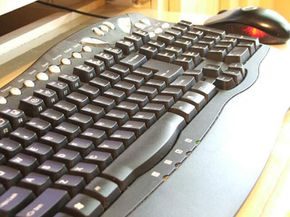
The keyboard and mouse you use all day matter. If your hands hurt, you cannot work. Invest in an ergonomic keyboard and a mouse that fits your hand shape. You do not need to spend a fortune, but cheap plastic peripherals will cause strain over time.
4. Lighting
Natural light is best, but it causes glare on screens. Use a desk lamp with adjustable brightness and color temperature. Good lighting reduces eye strain and keeps you alert. Avoid overhead lighting that casts shadows on your workspace.
5. Audio
If you work in a noisy household, noise-canceling headphones are essential. They create a sonic barrier that helps you focus. They also signal to others that you are in a meeting or deep work mode.
6. Storage and Organization
Chaos breeds procrastination. You need a system for physical and digital files. Buy file cabinets, labeled folders, and dividers. Digitally, use cloud storage and consistent naming conventions. When you can find what you need in seconds, you save hours over the course of a year.
Final Thoughts
Setting up a home office is not just about buying things. It is about creating an environment that supports your work style. You need the right space, the right rules, and the right tools. Start small. Get the computer and the internet working. Then add the chair. Then the lighting. Iterate based on what feels wrong.
The goal is not perfection. The goal is functionality. If you wake up in the morning and know exactly where you will sit, what you will do, and how you will get it done, you have already won half the battle. The rest is just execution.
What happens when the internet goes down? Or the power fails? That is when you find out if your system is robust. We will cover backup systems and emergency protocols next. For now, just get the basics running.
The right machine for the job
If your job requires you to be away from home, a laptop is essential. You must bring your documents. Nothing kills motivation more than leaving important documents on your desk at the office. With a laptop, you can use your office anywhere.
It’s lighter than before. It is also very powerful. Buy a durable case with a shoulder strap. There must be enough space for the computer and paper documents.
Don’t have a laptop? Great. If you stay put, your desktop will work. But don’t cheap out on specs. It requires RAM, storage, and a processor that can handle multiple programs. Graphics work? Requires more power and more space. Photo editing, illustration and animation – that eats hardware for breakfast.
If you’re traveling and don’t like small screens, use a docking station. Plug it in. Boom. Standard monitor, keyboard, mouse, printer and scanner. All hooked up. There are no synced files. No data is transferred. A desktop experience without the bulk.
打印机大战:激光与喷墨
为您的输出选择正确的打印机。
黑白激光? 适合清晰的文本。 快速地。 高音量? 去激光吧
彩色激光? 昂贵。 高品质的照片和图表。 首先将打印质量与更便宜的喷墨打印机进行比较。
喷墨? 最适合彩色图表、图表和照片。 纸张在这里很重要。 劣质纸张毁掉优质墨水。 购买不同型号的测试打印件。 喷墨打印机比激光打印机慢,但可为大多数任务提供更好的图像质量。
Connect and save
Data must be transferred.
**modem? ** Dial-up is dead. DSL or cable modem for broadband. DSL uses phone lines, but doesn’t tie it up. Cable uses your TV line.
Scanner? Essential for digitizing documents. If you use an online fax service like E-Fax, this can replace your fax machine.
Fax? Only if you need to send paper faxes frequently. Otherwise, skip.
CD burner/DVD burner? For large files or backups. The capacity of a DVD-RAM disc is much larger than that of a CD. Video files require DVD space.
Removable media? Zip drive (100MB/250MB) or Jaz drive (2GB). Niche, but useful for transferring large files between computers without a network.
数字工具
数码相机? 用于演示、报告、网页内容。 比扫描胶片更快。 质量? 足以满足大多数商业用途。 营销材料可能需要更高的分辨率。
多用途设备? 扫描仪、传真机、复印机、打印机合二为一。 适合小空间。 不利于可靠性。 如果扫描仪坏了,您也无法复印。
非技术必需品
电话很重要。 来电显示可以筛选出电话推销员。 第二行? 是的。 将商务电话与个人噪音分开。 互联网接入、传真和电话集于一条线路是理想的选择。
You do not need to pay for a second landline to run a professional home office. Skip the extra monthly fee and adapt what you already own.
Using Your Cell Phone
If you have a mobile device, use it as your primary business line. It is practical and cheap. For a dollar a month, many providers will forward calls to your cell when the home line is busy. This works if you have dial-up internet or just want a backup.
Turn off call-waiting before you go online. Dial *70 before the number you are calling. This stops the phone from ringing when you are on a call.
Signal strength is the weak link here. Working from a basement often means dead zones. You might not get a clear voice. If your cell service includes voicemail, you can at least leave a message. It is better than a missed connection.
Voicemail Services for Computer Users
Want to handle calls while you are online? Use a service that answers for you.
Callwave and Pagoo are popular options. They cost about $5 a month. These services play a greeting and record the caller’s message. You can listen to it on your computer. Then you disconnect and call them back. It is simple.
Surge Protectors Are Non-Negotiable
You need a surge protector. It is not just about having more outlets. It is about protection.
Power spikes happen. They kill computers. They fry peripherals. Do not skip this step. Buy a good one. It saves you hundreds in repairs.
PDAs for Travel
You might need a PDA. Palm Pilots and Handsprings are classic examples. They are small. They fit in your pocket.
If you travel, they are handy. You can access contacts. You can check email. You can hit the web. It keeps you connected without lugging a laptop.
Choosing the Right Software Stack
If you’re flying solo with no employees, the software you need is simple. You only need the tools to handle communication, paperwork and basic security.
Let’s start with email. Your ISP may provide one, but a separate client such as Microsoft Outlook Express or Eudora is a better option. keep your inbox, even if you change service provider.
A word processing program is required for paperwork. Microsoft Word is the standard. WordPerfect and Lotus Word Pro are legacy options, but they still work.
Spreadsheets and databases are needed to enter data. Microsoft Excel dominates this space. Lotus 1-2-3 is an legacy option. Intuit QuickBase handles database operations for small teams.
Presentations are handled by Microsoft PowerPoint or Astound. Don’t skip virus protection. McAfee and Norton Antivirus are the heavy hitters here. Use Symantec Norton Utilities or TechTool Pro for system maintenance.
A PDF reader is also required. Adobe Acrobat Reader is the industry standard. view formatted brochures without buying expensive editing software.
Graphics work requires special tools. CorelDraw, Adobe Illustrator and Adobe Photoshop cover most of the basics. Macromedia Freehand and Deneba Canvas are also options. Some scanners have basic image editing software.
The primary options for browsing are Netscape Navigator and Microsoft Internet Explorer.
Most of these applications are suites. Microsoft Office and Microsoft Works (the cheaper option) combine word processing, spreadsheets and email. Corel and Lotus offer similar all-in-one packages. AppleWorks for Mac. If you’re on a budget, look for the “light” or “limited” version. They run on both Windows and Mac.
When you have a team, the game changes. You need to scheduling, shared files and contact management. Lotus Notes and Novell Groupwise solve this. These are powerful but require IT knowledge to manage.
The easiest option is to online management services. These work in your browser. They are responsible for team coordination, client interactions and file sharing. Most charge a monthly fee per user or a flat fee for an unlimited number of users. Some services offer free limited tiers.
Popular services include:
- Afteroffice : Virtual office tools.
- Visto : Web-based scheduling and file storage.
- OfficeClip : Team collaboration tools.
- IDrive : Secure online data backup.
Your specific needs vary by industry. Talk to other companies in your field. Ask them what software they use. Also check shareware. There are many free or inexpensive programs that can do this job without the hefty price tag.
Setting Up Your Physical Workspace
Software is only half the battle. You need a place to put the hardware.
Let’s start with the desk. You need enough space to work. You need enough space to place your computer and spread out your paperwork. L-shaped corner desk is the best choice. It maximizes corner space.
Check the keyboard tray. Many computer desks are too small. The mouse pad and the mouse must sit comfortably. If the tray is too tight, you will feel cramped.
Reserve space for peripherals. Printers, scanners and fax machine also need space. If possible, don’t push it into the main desk.
Use vertical space. Bookshelves, cabinets and filing cabinets are essential. They keep things organized and free up desk surface. Light equipment such as printers and scanners can be placed on top of these cabinets.
The chair is the most important for health. Invest in one with good back support. You should be able to adjust it. The armrests improve comfort, especially when you are doing non-computer tasks. Ergonomic chairs can prevent long-term pain.
For more detailed advice on choosing furniture, check out resources such as About.com’s Home Office Furniture Page. Learn about ergonomics and layout tips.
Your setup must support your workflow. If your desk is cluttered, you’ll clutter your mind. Keep it clean. Keep it working. The right tools and the right space can make the difference between a hobby and a career.
you have the hardware. You have this software. But it doesn’t matter if you’re not online. A broadband connection is the lifeblood of your home office, allowing you to send and receive files, audio and video without limiting your bandwidth. Broadband is not just one thing. It is a category. DSL, cable, and satellite all fall into this category.
If you have cable TV at home, you may be able to use a cable modem. If there are options nearby, this is usually the fastest option. DSL is a different matter. Uses a regular phone line. But there’s a problem. You must be close to the service provider’s central office. Usually this means 3-4 miles. The signal may weaken if you’re farther out. Check with your local service provider. Many companies offer online tools that allow you to check if DSL is available at your address by entering your phone number.
What if you live in a remote location? There are no cables. No DSL. Satellites are still an option. It offers a faster connection but is more complicated to set up. You need a dish, a receiver and a special modem. Requires more installation work than a simple plug-in.
When you establish an “always on” connection, security is non-negotiable. Requires a firewall. Otherwise, your files will be exposed to hackers. Understanding how firewalls work is the first step in protecting your data.
An Internet service provider is also needed. This gives you an Internet connection, an email address, and possibly 5-10 megabytes of free web space. However, relying solely on an ISP to send email has its limitations. Sites like Hotmail, Yahoo, and Excite offer free personal email accounts. Owning it gives you a strategic advantage. It doesn’t change even if you change your service provider. You can forward emails to any account. You do not need to inform your contacts of your new address. If you use a work email, keep it separate. Personal and professional boundaries are important.
If you need to connect several computers at home, look into home networking guides. But let’s talk about the physical world.
Manage your business address
Running a business from home can cause privacy issues. You may not want your home address to be marked as a work address. It can look unprofessional. Safety may be compromised. There are two main options. Rent a mailbox. Or use CMRA (Commercial Mail Receiving Agency).
CMRA provides a corporate-sounding address with a suite number. Both options require you to leave your home to pick up the mail. Some services offer delivery for an additional fee. Mailboxes have one major drawback. Couriers do not deliver packages. If you need to receive boxes, you will need a CMRA with your suite number. Available 24 hours a day. You can request a notification of the package’s arrival.
Current CMRA postal regulations require three-line addresses to include “PMB” before the number. For a four-line address, use the # symbol.
Find a space for a client meeting
Meetings don’t always happen online. inviting a client to your dining room is usually a bad idea. If you want a professional environment, look for executive suites or hotels that offer short-term rentals. These premises have a reception, an voicemail and private meeting rooms.
You can also rent it by the hour if you don’t need it every day. Websites such as Offices2Share.com list available rooms. A three-hour meeting room for 5 people in the Black Building in Washington, D.C. costs $75. The price for a room for 15 people is 120 dollars at the same time. These can be booked online. The listings usually include a map, directions, photos and contact information.
There are other options. Hotel lobby. restaurant. Golf course clubhouse. If you keep it casual, it works. However, for serious negotiations, a private room can be worth it. This shows that you are serious about the meeting.
The way we connect has shifted drastically. Email isn’t just a tool anymore; for many, it’s the only tether to certain colleagues. Compare business communication in 1985 to today. Back then, it was the office phone. Maybe a telex machine if you were really cutting edge. Fax machines followed. Then car phones. Then email hit the scene. Change happened fast.
Technology didn’t just speed things up. It raised the bar. We produce more work, faster. Expectations for productivity climb because we can do more. It’s a cycle. But this same technology that demanded more from us is also offering a way out.
Want to work from home? Cut the commute. Balance family life without the stress? It’s possible. The tools that squeezed our time are now giving it back.
How to communicate effectively in a virtual business environment
Communication is the backbone of any business. Sole proprietor or corporate employee, it doesn’t matter. If you communicate well, you work well. Take the technology. Use it to take back your life. Here is how you can make it work.
Mobile Connectivity
A simple cell phone changes everything. You can make it to your child’s softball game. You won’t miss the important call. You aren’t glued to a desk.
Wireless web technology via cell phone or a Personal Digital Assistant (PDA) lets you move. Wait for an emailed file that needs approval? Use that time. Go to the grocery store. Submit the file once it arrives. No wasted hours sitting in front of a screen.
The Professional Facade
Work from your basement? Sure. But you still need a professional image. A virtual assistant or office service fixes that. Get a professional address. Have a receptionist answer your calls. You get the credibility of a physical office without the overhead.
Face-to-Face Without the Flight
Video conferencing bridges the gap. Talk to clients or co-workers across the country. Do it face-to-face. Never leave your city. The distance disappears.
Combine teleconferencing with Internet presentation software. Talk to several people in real time. Everyone views the same presentation. Locations vary wildly. You’re all in the same room, virtually. Services like Sonexis offer these tools.
Digital Office Tools
Web hosted office tools handle the daily grind. Schedule meetings. Send files. Chat with co-workers or clients. Instant messaging keeps things moving fast. No need to email back and forth for every small question.
Custom chat rooms or instant messaging allow discussion. Talk to several people from different locations. Do it when talking isn’t possible. Typing is often faster and less intrusive than a phone call.
Interactive Events
Need to train a team? Host it live. Web conferencing lets you hold interactive seminars, meetings, or get-togethers. It’s not just about sending data. It’s about shared experience.
Don’t Forget the Basics
All this tech is great. But don’t forget the old standard. A wired, corded telephone still works. Reliable. Simple. Sometimes, simplicity is the best tool you have.
Communications in any office environment—virtual or not—are simpler than ever. Possible from almost anywhere.
For more on navigating this shift, check out How Virtual Offices Work.
Lots More Information
Related HowStuffWorks Articles
- How Batteries Work
- How Fax Machines Work
- How Home Networking Works
- How Inkjet Printers Work
- How Laser Printers Work
- How Liquid Motion Lamps Work
- How PCs Work
- How Photocopiers Work
- How Scanners Work
More Great Links
- Home Office Life
- Archive of Home Office Tips
- NetBusiness
- The Virtual Office Group
- Virtual Office: Afteroffice